Introduction
Computers have become essential tools for work, learning, and entertainment. When they malfunction, it can disrupt daily life and productivity. Understanding how to perform basic computer repair services can save you time, money, and frustration. Whether your device is slow, infected with malware, or experiencing hardware issues, this guide offers practical tips to get your system running smoothly again.
Understanding Common Computer Problems
Before diving into repairs, it’s important to identify the root cause of your computer issues. Many problems are software-related, while others involve hardware. Recognizing the type of problem can help you decide the best approach.
Slow Performance
A computer that lags or freezes frequently is a common complaint. This may be due to insufficient memory, a cluttered hard drive, or background applications consuming resources. Regular maintenance, such as disk cleanup and uninstalling unused programs, can significantly improve performance.
Software Errors and Crashes
Applications crashing or the system displaying error messages can indicate corrupt files, incompatible software, or outdated drivers. Keeping your operating system and software up-to-date is crucial. You can also use built-in troubleshooting tools to identify and fix errors.
Virus and Malware Infections
Malware can slow down your computer, steal personal information, or even render the system unusable. Using reputable antivirus software, performing regular scans, and avoiding suspicious downloads are key to preventing infections.
Hardware Failures
Hardware issues, such as faulty hard drives, RAM problems, or overheating, often require professional attention. However, you can perform basic diagnostics, such as checking temperature levels and testing components individually.

Essential Tools for Computer Repair
Having the right tools makes repair work easier and more efficient. Some essential tools include a screwdriver set, anti-static wristbands, compressed air, and diagnostic software. Additionally, maintaining backup drives and system restore points ensures you can recover data if something goes wrong.
Diagnostic Software
Diagnostic programs help identify problems quickly. Tools like memory testers, hard drive analyzers, and system monitors provide insights into potential issues. Utilizing these tools can save time and prevent unnecessary hardware replacements.
Basic Repair Kit
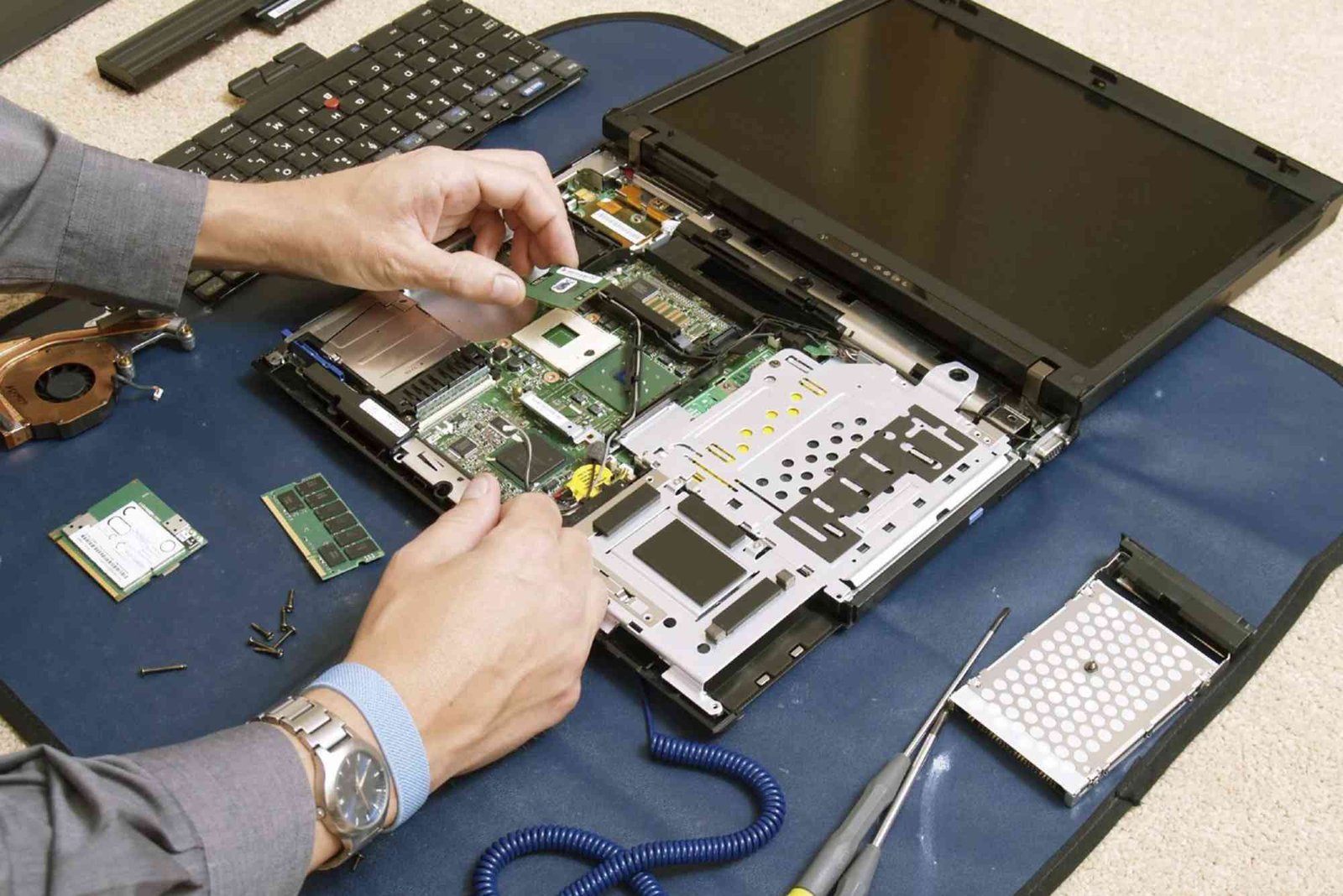
A simple repair kit should include screwdrivers, pliers, tweezers, and an anti-static mat. These items help safely open devices, replace components, and prevent static damage. Using proper tools reduces the risk of causing more harm to your computer.
Practical Steps to Repair Your Computer
Once you’ve identified the problem and prepared your tools, it’s time to start the repair process. Following a systematic approach ensures safety and efficiency.
Back Up Important Data
Before making any repairs, always back up your files. Use external drives or cloud storage to prevent data loss. This step is crucial, especially when dealing with software issues or reinstalling the operating system.
Clean the System
Physical cleaning can prevent overheating and improve performance. Dust accumulates inside computers, blocking fans and reducing efficiency. Use compressed air to clean vents, fans, and keyboards gently. Avoid using liquids or harsh chemicals that could damage components.
Scan for Malware
Run a full antivirus scan to detect malware or viruses. Remove any threats found and update your security software. Additionally, consider running a malware removal tool to ensure all infections are eliminated.
Optimize Software
Uninstall unused programs and disable unnecessary startup applications. This reduces the load on your system, speeding up boot times and overall performance. Keep your operating system and drivers updated to avoid compatibility issues.
Check Hardware Components
Inspect hardware for obvious damage, loose connections, or worn-out parts. Testing RAM and hard drives can reveal underlying issues. If components fail, replacing them with compatible parts restores system stability.
Reinstall the Operating System if Needed
Sometimes, persistent issues can only be resolved by reinstalling the operating system. This ensures a clean environment, free from corrupt files and conflicts. Make sure to back up your data before performing this step.
Seek Professional Help When Necessary
Some repairs require advanced skills or specialized equipment. Don’t hesitate to consult experts for complex problems. For trusted guidance, check Computer Repair Services resources at www.cnet.com for professional tips and recommendations.
Preventive Measures to Avoid Future Problems
Preventing issues is often easier than repairing them. Regular maintenance, careful usage, and timely updates can extend your computer’s lifespan.
Regular Updates
Keep your operating system, drivers, and applications updated. Updates often include security patches and bug fixes that prevent future issues.
Safe Browsing Habits
Avoid suspicious websites and downloads. Use strong passwords and enable firewalls to protect your system from cyber threats.
Routine Cleaning and Checkups
Physical cleaning and monitoring system performance should be part of your routine. This prevents dust buildup, overheating, and component wear.
Reliable Backup Solutions
Regularly back up your data to external drives or cloud storage. This ensures recovery in case of system failure, malware attack, or accidental deletion.
When to Use Professional Computer Repair Services
While DIY repairs can solve many issues, some problems require professional expertise. Severe hardware failures, water damage, or complex software corruption should be handled by skilled technicians. Accessing Computer Repair Services ensures quality repairs and reduces the risk of further damage.
Learning More About Computer Repairs
Expanding your knowledge improves your ability to handle future issues. Online tutorials, courses, and guides offer practical insights. You can also Learn How Computer Repair to enhance your skills and confidence. Regular practice with safe, low-risk repairs builds valuable experience over time.
Mastering basic computer repair services saves time, money, and stress. By understanding common issues, using the right tools, and following practical steps, you can keep your system in top shape. Preventive measures, combined with ongoing learning, ensure fewer problems in the future. Start today by backing up your files, cleaning your system, and applying these practical tips. For complex issues, don’t hesitate to consult professional services.
Enhance your computer skills now, and enjoy a faster, more reliable system. Explore professional Computer Repair Services to address challenges efficiently.
FAQs
How do I fix a slow computer?
Optimize software, remove unnecessary programs, update your system, and check hardware performance.
Can I repair my computer myself?
Yes, many minor issues like cleaning, software updates, and virus removal can be done safely at home.
How often should I clean my computer?
Physical cleaning every 3–6 months helps prevent dust buildup and overheating.
What are the signs of a failing hard drive?
Frequent crashes, unusual noises, slow access times, and corrupted files indicate potential hard drive failure.
When should I hire a professional?
Consult a professional for hardware replacements, water damage, or persistent software corruption that DIY methods cannot fix.
Are there online resources for learning computer repair?
Yes, platforms like Computer Repair Services resources at www.cnet.com provide tutorials, reviews, and expert advice for learning repair skills.